
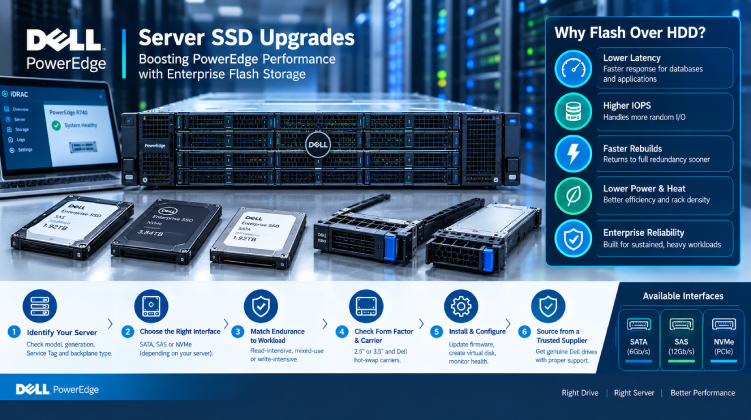

Few upgrades change the feel of a Dell PowerEdge server as much as moving from spinning disks to flash. Database queries finish faster, virtual machines boot in seconds, and RAID rebuilds that once took a day shrink to hours. But the gains only arrive if the drive is the right match for the server, the controller, and the workload.
This guide walks through how to choose a compatible Dell server SSD, which specifications deserve attention, and how to install it without disrupting production.
Why Flash Makes Sense in a PowerEdge Server
Hard drives still win on cost per terabyte, but SSDs solve problems that HDDs cannot.
- Lower latency: Flash responds in microseconds, not milliseconds, which directly improves database and application response times.
- Higher IOPS: A single SSD can handle the random I/O of an entire shelf of spinning disks.
- Faster rebuilds: When a drive fails, an SSD-based array returns to full redundancy much sooner.
- Lower power and heat: Fewer moving parts mean reduced cooling demand and better rack density.
For most organizations, the practical approach is tiered: SSDs for operating systems, databases, and virtual machines, and high-capacity HDDs for backups and archives.
Step 1: Identify Your Server Model and Generation
Compatibility starts with the server itself. A PowerEdge R640, R740, R750, and R760 may look similar from the front, but their backplanes, controllers, and supported drive types differ.
- Find the model and Service Tag on the pull-out tag or in iDRAC.
- Note the generation. 14th-generation servers and 16th-generation servers support different interfaces and drive carriers.
- Check the backplane type. It determines whether your bays accept SATA, SAS, NVMe, or a combination.
Share these details with your supplier before ordering. It prevents the most common purchasing mistakes.
Step 2: Choose the Right Interface
SATA SSDs
SATA drives run at up to 6Gb/s and are the most affordable option. They suit boot volumes, read-heavy workloads, and budget upgrades. Their single-queue design limits how much of flash’s potential they can use.
SAS SSDs
SAS SSDs run at 12Gb/s with dual-port support, which allows redundant paths in high-availability configurations. They remain a strong choice for servers built around PERC SAS controllers and for shared storage designs.
NVMe SSDs
NVMe drives connect over PCIe and deliver far higher throughput and lower latency than SATA or SAS. They fit virtualization clusters, transactional databases, and analytics workloads. Check carefully before buying: NVMe works only in bays and backplanes built for it, and some servers need specific controllers or cabling to enable those slots. Dell’s newer systems may also use hardware NVMe RAID options, so confirm which storage controller your server uses.
Step 3: Match Endurance to Workload
Endurance, measured in DWPD (drive writes per day) or TBW (terabytes written), tells you how much write activity a drive can absorb over its life. Dell and its drive suppliers typically offer three classes:
| Class | Typical Use in a PowerEdge Server |
| Read-intensive | Boot drives, web serving, content delivery, read-heavy databases |
| Mixed-use | Virtualization, general-purpose databases, email and collaboration servers |
| Write-intensive | Heavy transactional databases, logging, and caching tiers |
Measure your real daily write volume before choosing. Overbuying endurance wastes budget, while underbuying leads to early wear-out and unplanned replacements.
Step 4: Check Form Factor and Carrier Compatibility
Dell hot-swap drives sit in model-specific carriers, and a bare SSD cannot be installed without one.
- 2.5-inch drives are standard in most PowerEdge rack servers.
- 3.5-inch bays can hold 2.5-inch SSDs only with the correct Dell hybrid carrier.
- Carrier generation matters. Trays from older servers may not fit current chassis, and NVMe carriers differ from SAS/SATA ones.
Confirm the carrier is included or ordered separately, since this is one of the most frequent causes of delayed upgrades.
Dell-Validated SSDs vs. Third-Party Drives
Many third-party SSDs will physically fit and run in a PowerEdge. The difference shows up in management and support.
| Factor | Dell-Validated SSD | Non-Validated SSD |
| iDRAC health and wear reporting | Complete | May be limited |
| Firmware updates through Dell tools | Supported | Often unavailable |
| Support case handling | Straightforward | May require swapping the drive first |
| Carrier included | Usually yes | Often sold separately |
For production servers under Dell support, validated drives are the safer option. For lab or secondary systems, third-party drives can be a reasonable way to save money.
Common Mistakes When Upgrading Dell Server SSDs
- Using consumer SSDs. They lack power-loss protection and endurance, and often report poor health data to iDRAC.
- Mixing SSD models in one array. Different firmware and endurance ratings cause uneven performance.
- Ignoring controller limits. Older PERC controllers may bottleneck fast SSDs or lack proper support.
- Skipping firmware updates. Update the drive and controller firmware after installation using Dell Update Packages or the Lifecycle Controller.
- Forgetting to plan the migration. Moving data from HDD to SSD needs a tested backup and a rollback plan.
A Safe Installation Workflow
- Back up your data and verify the backup can be restored.
- Confirm compatibility of drive, carrier, backplane, and controller against your Service Tag.
- Check current firmware on the PERC controller and update if required.
- Install the SSD in its carrier and seat it in the correct bay.
- Create or extend the virtual disk in the PERC configuration, and keep drives of the same type together.
- Monitor wear indicators in iDRAC during the first weeks of operation.
Buying Enterprise SSDs in Bangladesh
Fake capacity labels and worn, relabeled drives are a genuine risk in the SSD market, and a bad drive can fail without warning. Working with a supplier that handles enterprise hardware daily, keeps stock in the country, and can match part numbers to your server model lowers that risk and cuts lead times.
Datacom supplies Dell server SSDs for common PowerEdge generations, covering SATA, SAS, and NVMe options in multiple capacities and endurance classes. If you are unsure which drive fits your server, a reliable Dell hardware supplier can verify compatibility against your Service Tag before you order.
Final Thoughts
A well-chosen SSD can extend the useful life of a PowerEdge server by years. Identify your server and backplane, pick the interface and endurance class that match your workload, and favor validated drives for production systems. Combine that with a careful installation and regular firmware and wear monitoring, and your flash storage will deliver consistent performance long after the upgrade day.